
How to Download Satellite Images for a Specific Area Using Google Earth Engine and Python
In a previous article, we introduced the main types of satellite imagery, where to obtain them, and how to write our first Python script to visualize images for a specific date and area of interest (AOI).
In this article, we continue the workflow by showing how to download satellite imagery clipped to a selected area instead of the entire satellite scene, which can be very large and unnecessary for most analyses.
First, we need to authenticate our Google Earth Engine account in Python within an Anaconda environment.
Create and Activate an Anaconda Environment
Open the Command Prompt and run the following commands:
# Create and activate the environment
conda create -n satellite python=3.11
conda activate satellite

# Install ipykernel in the environment
conda install ipykernel

# Add the environment to Jupyter Notebook as a kernel
python -m ipykernel install --user --name=satellite --display-name "Python (satellite)"
Install Necessary Libraries
These are the core packages required to work with geospatial data and visualize imagery from Earth Engine:
# Install core geospatial libraries with conda
conda install -c conda-forge numpy=1.26 pandas=2.1 matplotlib geopandas shapely=2.0 folium notebook -y

# Install Python-only packages with pip
pip install earthengine-api geemap georeader-spaceml
Authenticate Earth Engine
Run the following command once in your command prompt to link your Google account:
earthengine authenticateA browser window will open prompting you to sign in and authorize access. Once completed, your Python scripts will be able to use Google Earth Engine services.
Launch Jupyter Notebook
After setting up your environment and authenticating Earth Engine, launch Jupyter Notebook:
jupyter notebookThis will open the Jupyter interface in your browser.
Visualize Sentinel-2 Imagery
In this section, we visualize Sentinel-2 optical images over a specified area in Morocco (Area of Interest) directly from Google Earth Engine using Python.
# =========================
# Import Libraries
# =========================
import ee
import geopandas as gpd
from shapely.geometry import shape
from datetime import datetime, timezone
import geemap
from georeader.readers import ee_query

ee.Initialize(project='your_gee_id_porject')

# =========================
# Define Area of Interest (AOI)
# =========================
aoi = shape({
'type': 'Polygon',
'coordinates': (((-6.453954025338924, 32.530447002052426),
(-6.423890509569403, 32.52988323861328),
(-6.425201107676793, 32.51777274579041),
(-6.455264623446316, 32.51678037980431),
(-6.453954025338924, 32.530447002052426)),)
})

aoi_gpd = gpd.GeoDataFrame({"geometry": [aoi]}, crs="EPSG:4326")
aoi_ee = ee.Geometry.Polygon(aoi.__geo_interface__["coordinates"])

# =========================
# Define Time Range
# =========================
tz = timezone.utc
start_period = datetime(2025, 12, 30, tzinfo=tz)
end_period = datetime(2026, 1, 10, tzinfo=tz)

# =========================
# Query Sentinel-2 SR collection
# =========================
flood_images_gee, flood_collection = ee_query.query(
area=aoi,
date_start=start_period,
date_end=end_period,
producttype="S2_SR",
return_collection=True,
add_s2cloudless=False
)

# =========================
# Create Map
# =========================
m = geemap.Map(
center=aoi.centroid.coords[0][::-1],
zoom=10
)

m.add_basemap("SATELLITE")

# =========================
# Add each Sentinel-2 image
# =========================
for idx, row in flood_images_gee.iterrows():

    image = flood_collection.filter(
        ee.Filter.eq("title", row.name)
    ).first()

    date_str = row["localdatetime"].strftime("%Y-%m-%d")

    m.addLayer(
        image.clip(aoi_ee),
        {"bands": ["B11", "B8", "B4"], "min": 0, "max": 3000},
        f"{row['satellite']}: {date_str}",
        True
    )

# =========================
# Add AOI Outline
# =========================
m.add_gdf(
aoi_gpd,
layer_name="AOI",
style={"color": "black", "fillOpacity": 0}
)

# Display map
m
The visualized image looks like this:

Download the Area of Interest
To download a satellite image clipped to the area of interest, run the following code. The exported image includes the main 12 Sentinel-2 Level-2A surface reflectance spectral bands.
# =========================
# Download ONE L2A image with ALL bands
# =========================
date_to_download = "2026-01-07"  # Change date if needed

bands_13 = [
'B1','B2','B3','B4','B5','B6','B7',
'B8','B8A','B9','B11','B12'
]

img = ee.Image(
flood_collection
.filterDate(date_to_download, ee.Date(date_to_download).advance(1, "day"))
.first()
).select(bands_13).clip(aoi_ee)

geemap.ee_export_image(
img,
filename=f"S2_L2A_12bands_{date_to_download}.tif",
region=aoi_ee,
scale=10
)

print("Download complete (12 bands)")
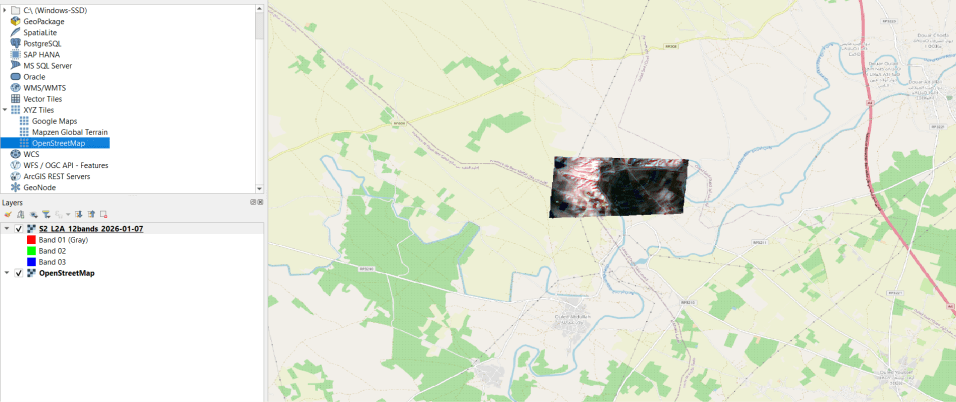
When opened in GIS software such as QGIS, the downloaded GeoTIFF will contain only the selected AOI, making it much smaller and easier to analyze than the full satellite scene.

Hey there! I am the creator of AI Decoder.
I am a data scientist by training and a Ph.D. student in AI. In this blog, I try to explain the knowledge I learn in simple words and help someone somewhere.